
Planning of scripting for Windows? The command shell, the Windows Scripting Host (WSH) and the Windows Management Instrumentation (WMI) provide a nice infrastructure for this.
The Windows command shell is better than ever (though I will say that UNIX still rules the chart when it comes to the shell that a UNIX administrator will gain access to). One can rapidly perform the task when the GUI capabilities aren’t required.
WSH is more an administrator tool, as per Microsoft. One can install almost any scripting engine that he wishes and get started with it. It just provides an environment for the scripts to run. Technically, it has no big and unique scripting feature. Though, I am not that big a scripting guy, I wont comment much on this.
The Windows Management Instrumentation almost gives you power to handle almost everything, right from your computer hardware to event management architecture to scriptable APIs. Yes, it’s a bit complicated to learn. A better alternative is wmic, a command-line interface, which comes with full documentation. With the short aliases, one can easily shorten lengthy WMI calls. A short simple example- let’s say that we have to see the number of processes running on my system and the amount of space they occupy. Type wmic on the command prompt and then type
process get name, workingsetsize
The output generated would be:
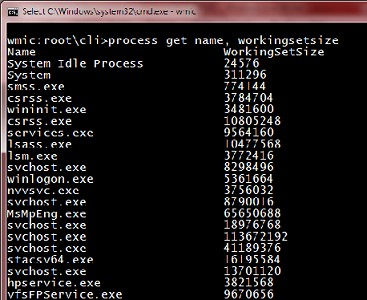
Now, one may ask why should we go for wmic when we can actually view this in Windows Task Manager and that too just with a few clicks, just no use of any freaking command? Well, now imagine you are sitting in a network and want to know what are the processes running on a node, say node1. You will just have to write /node:switch which is followed by the remote system’s name and then type this very same command.
/node:“node1”
process get name, workingsetsize
Want to delete a process? Type
process where name=<process_name> delete
or you can try the UNIX equivalent command
process [pid] delete
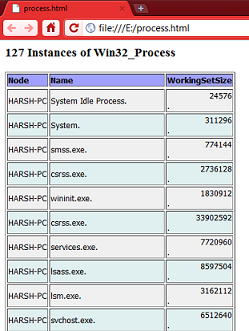
Well, the output format is tougher to read in this normal format. One can, therefore, view these outputs in both Excel or HTML format too. I personally prefer HTML among these two. To view the output in HTML format, one has to write
/output:E:\process.html
process get name, workingsetsize /format:htable
The output generated can be viewed by opening the web page ‘process.html’ which looks like
For Excel, the format switch becomes csv.
Basically, everything that we do in wmic is decided by the verbs that are associated with its classes. The available verbs are
| ASSOC | Outputs Associates of the wmi object |
| CALL | Executes a method |
| CREATE | Creates a new instance and helps in setting its properties |
| DELETE | Deletes the instance of the class |
| GET | Retrieves the information about specific properties |
| LIST | Lists the concerned data |
| SET | Helps in modifying the properties of an instance |
One can even manage the system configuration options with wmic. For an instance, let’s try
bootconfig get
The above command shows you the boot directory, configuration path and other related stuff.
As simple as that! Well, you can use WMI in GUI mode too. Just type wmimgmt.msc in command prompt and then go to the security tab in the properties of WMI control to handle the root directory.
Well I won’t talk all technical stuff because simply put, it’s almost impossible to talk about it on this very page. New shell options like Windows PowerShell are also available. Until I try it and write again, wmic can give you kick-start if you want to be a network administrator or try it simply because you love playing with your system.


A truly helpfull post – A great thank you I would like you’ll not mind me writting concerning this article on my blog I will also link back to this post Thank you
A fantastic and helpfull article – Thank you very much I hope you dont mind me blogging about this article on my blog I will also leave a linkback Thanks